Released: September 2026
The ritual you believe in and still don’t do
Ask anyone who has done a proper Shutdown what it’s worth and you’ll get a straight answer: the day ends, the open loops get a plan, tomorrow’s first move is already decided, and the evening is actually yours. Almost nobody disagrees with the idea.
And almost nobody does it.
Not from doubt. At 4:30 the day is still going. The meeting ran long. Nothing anywhere says stop — and the moment when stopping was possible passes without ever announcing itself. A reminder arrives and tells you about a decision you’re now too late to make.
The fix isn’t more conviction. It’s that the ritual has never had any time of its own.
Your Shutdown, on your calendar
From today, MakeTimeFlow can put your Shutdown on your calendar each workday — a 30-minute block at the time you say you finish, sitting in the same place as everything else you’ve committed to. If you’ve connected Google or Outlook, it goes there too, so nobody books over it.
The block is an ordinary task, which means you can do the one thing that matters most: drag it to when you will really stop.
That small act is the whole idea. The time you set in preferences is a guess made on a calm day. Moving the block is you deciding, today, with today’s information, that this is the moment — and that’s the whole difference between meaning to stop and stopping. A block you move gets done. A block you leave sitting and look away from usually doesn’t.
Start a timer on it and the ritual itself opens. Protected time and the ritual, from one gesture.
Your WRAP, on the day you actually close the week
The weekly WRAP gets the same treatment, with one thing the Shutdown never needed: you get to say when.
Until now the app quietly assumed Friday afternoon. But weeks don’t close on a schedule everyone shares. Some people wrap Friday before they leave. Some sit down Sunday morning with coffee. Some do a bit of both. So the WRAP block asks you for a day and a time, and takes whatever you give it — including Sunday, which we deliberately don’t treat as “not a working day.”
It’s placed at the start of your week rather than on the morning of, so you can see it coming and plan the week around it rather than discovering it as it arrives.
Call it whatever you call it
One of our users doesn’t have a Shutdown. He has a Mise-en-place — the kitchen discipline of setting everything out ready for tomorrow. That’s what it is to him, so that’s what it should say on his calendar.
There’s a Call it field beside each switch. Name yours anything. It still opens the same ritual.
It’s yours to decline
If you don’t want one today, delete it. It stays gone — nothing puts it back until tomorrow, or next week for the WRAP. Declining today isn’t declining forever, and we won’t nag you within the hour.
If you’d rather not have them at all, one switch turns them off. Anything already on your calendar stays where it is.
Where to find it
Preferences → Emails & Nudges, under Shutdown and Weekly WRAP. Turning a switch on places today’s block straight away — you don’t have to wait for tomorrow.
Some work isn’t a when — it’s a kind
The same idea, pointed somewhere else.
Look at today. Odds are three of those tasks are email — to different people, about different things, with nothing in common except that you’d do all three in one sitting if you could see them together. That’s how email works. You get into it once and clear the pile. Instead they’re scattered through the day, and you pay the switching cost three times.
That isn’t a flaw in your list. It’s that your tasks are organised by when — today, next, later — and some work doesn’t have a when. It has a kind.
You may already be halfway there. Anything you type in a title starting with # or @ is a tag: #email, #calls, #tonight. If you use the waiting-for workflow you’ve been tagging all along — @waiting_for has always worked exactly this way. What tags never had was a window.
Now they do. In Focus, above @next and @later, there’s a new row. Click the +, name a tag, and you get a card: how many tasks carry it, and the two most recent. Click it to see them all, whatever bucket they’re in.

Drag a task onto the card and two things happen at once: it gets the tag, and it moves to @next. The second one is the point. You’re not labelling the task — you’re getting it off today’s plate without losing it. It’s out of the way, and it’s waiting in the pile you’ll work through when you sit down to do email.
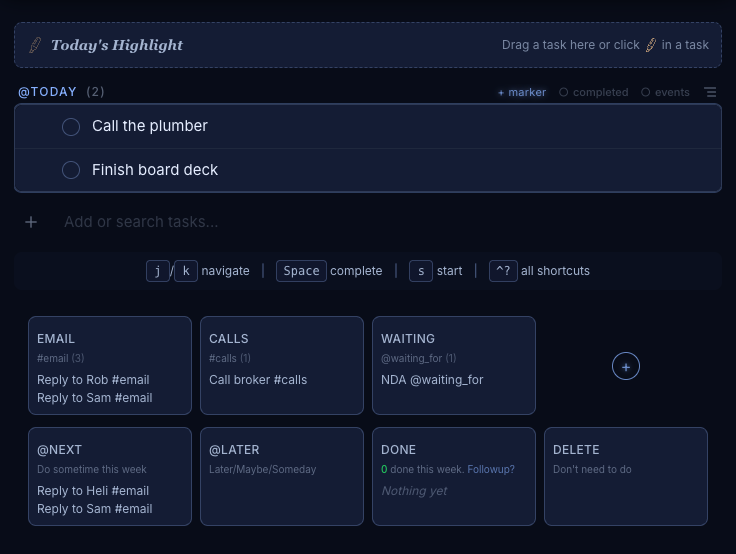
Remove a bucket and the card goes, not the tags. Your tasks keep their #email. You’ve closed a window, not thrown anything away.
You can keep four — that’s how many fit the row.
Where the tag comes alive
A card that only gathered work would be a tidier way to look at your backlog, which is not the same as a way through it. Two things turn it into something you can sit down to:
Drag the card onto your calendar and you get a Work on #email block at that slot — the same gesture as dragging a project across. Drop it twice if that’s your day; email before the standup and email after lunch is an ordinary Tuesday, not an edge case.
Or hover the card and press Start. Three buttons — 25, 5, 45 — and you land in flow with the outliner showing just the tasks carrying that tag. Nothing else on screen. If you already dragged an #email block to 2pm, pressing Start at 2pm begins that block rather than laying a second one over it.
That’s the size of it, and the size is the point. Email you can only do all of is overwhelming; email you do twenty-five minutes of is a chunk. You get to decide which one it is.
Tags and markers do different jobs
If you use markers these might sound similar. They’re not, and they work together. A marker divides one list: above the line is a win, below is a bonus. A tag cuts across lists: #email doesn’t care which bucket a task is in.
One is about this list, today. The other is about this kind of work, anywhere.
Type the task. All of it.
Here’s a task the way most people add it: type the title, click the bucket, click a duration, click a date, click into the project. Five interactions, four of them with the mouse.
Here’s the same task:
Reply to Rob /Launch Product @today 45m due Friday
One line, same result — and most of it has been there for a long time. This release finishes the two pieces that were missing.
The slash now takes a name. /Launch Product files the task under that project, and it works at either end of the line, because the slash means something slightly different at each:
/Launch Product do this task     ← declare the parent, then write the task
Buy milk /Grocery Run            ← write the task, then file it
Names aren’t case-sensitive, and if the name doesn’t match anything you have, MakeTimeFlow leaves your text exactly as you typed it rather than guessing — which is your cue that you’ve got the name slightly wrong. It’s careful about the busy character it’s borrowing, too: https://example.com/docs, either/or and 9/5 are all left alone.
And two new words: work on. work on Flow Product sets aside a sitting on that project. work on #email sets aside a sitting on everything tagged #email — the same block dragging the bucket onto the calendar makes, reached by typing instead.
That last one has a payoff worth knowing about. A repeating task is only its text. So work on #email set to repeat weekly gives you an email session every week — the block, the timer, and a list filtered to just your email — set up once and never touched again. Most “automation” is a workflow builder. This is a sentence.
You don’t have to memorise any of it. Type one thing, once, and see if it sticks.
How this helps you level up
The Aligned Action Framework only works if the loop actually closes. Success stories set the direction, the day’s tasks carry it, and the Shutdown is where the two get reconciled — where you find out what really happened and decide what tomorrow is for. Skip it often enough and the framework becomes a plan you write and never review.
There’s one idea running under everything here, and it isn’t about discipline. A ritual you believe in, a pile of email you keep flinching from, a project you mean to get to — none of them are waiting on more resolve from you. You already meant all of it. What they were missing was a say in your day.
So look at how much of this is you deciding. You say when the Shutdown is, and you move it when the day disagrees. You say which day closes your week — Sunday counts. You say what they’re called. You say no to today’s without saying no to tomorrow’s. You say whether email is twenty-five minutes or forty-five, and whether it happens before the standup or after lunch. None of that is the app deciding and then reminding you about it. It’s the app doing what you said.
And that changes how the work feels. The Shutdown stops being one more thing you owe and becomes the part of the afternoon you close the laptop for. Email stops being a low hum you carry from nine to six and becomes forty-five minutes you walk away from finished. The pile you were dreading turns out to be a sitting you chose the size of.
Not more time, and not more discipline. More of your time under your control.
Related
- Scheduling Your Rituals — the full guide to the Shutdown and WRAP blocks
- Rituals — what the daily rituals walk you through
- Tag Buckets — grouping the work that cuts across your days
- Task Text Format — everything you can type into a task title, on one page